Welcome to Bizzen
biz·ZEN — zen for the business you built
This guide walks you through getting set up — from downloading the app to creating your first job. The whole process takes about five minutes.
Download the app
Download the app
Bizzen is available for iPhone and Android. Search “Bizzen” in your app store, or tap one of the links below.
✓Once it's installed, open the Bizzen app and let's get you set up.
Storage tip — ensure space for site visitsTap to learn more
Site visit videos can use significant storage. Before your first visit, check that you have at least 2–3 GB of free space on your phone. Don't worry — once your video syncs to your Bizzen account, it's removed from your phone automatically, so the space is only used temporarily.
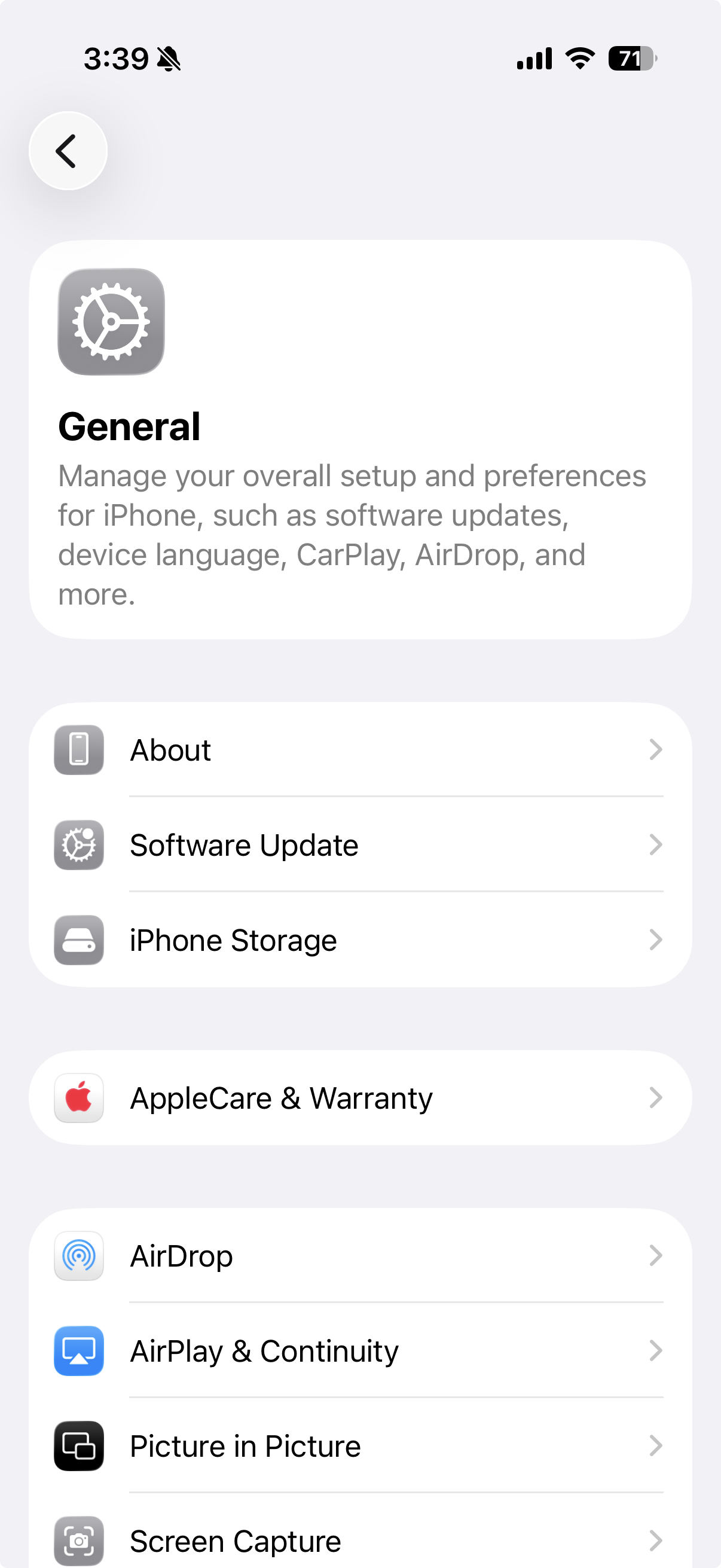
iPhone: Settings → General → iPhone Storage
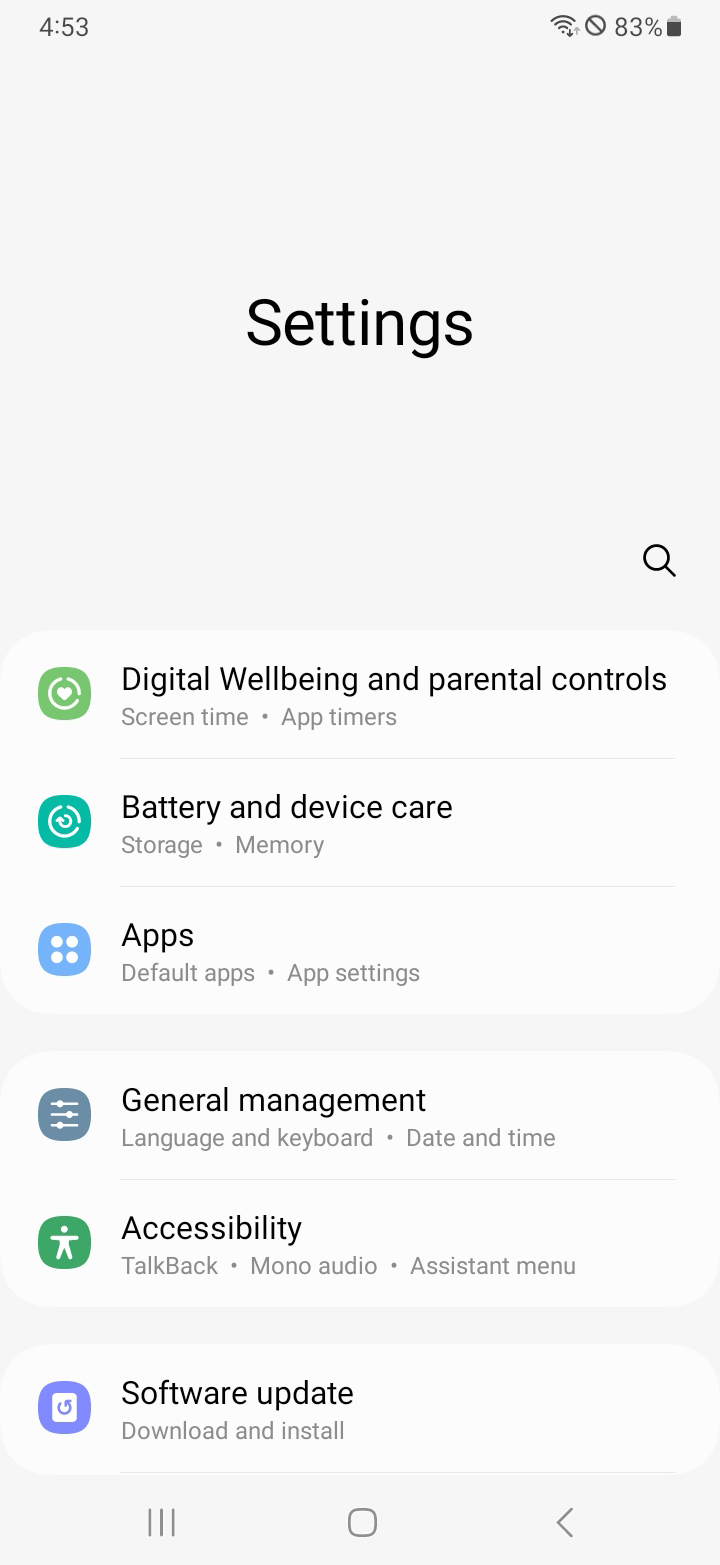
Android: Settings → Battery and device care → Storage
Create your account
Create your account
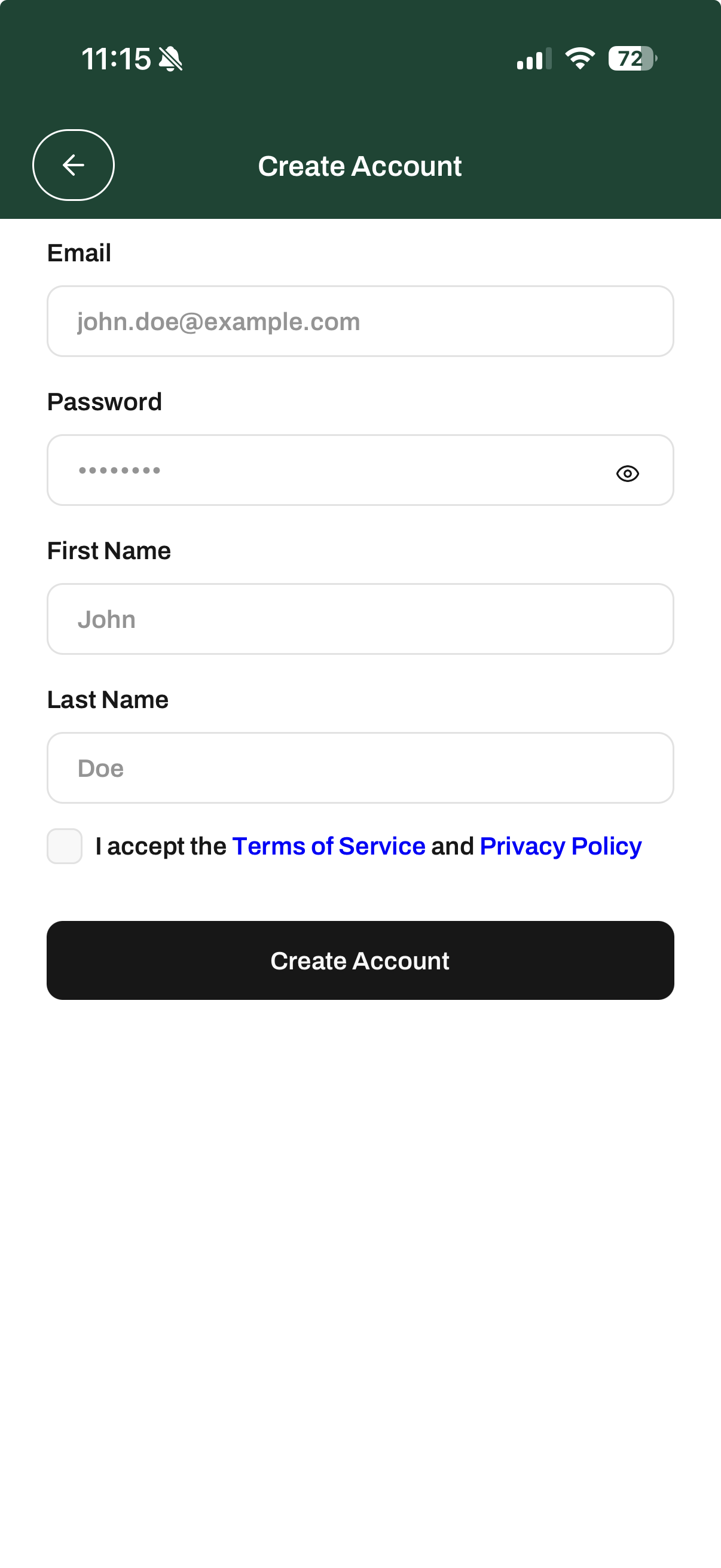
Open the app and tap Create Account. You'll need:
- ✓Your email address
- ✓A password
- ✓Your first and last name
Accept the terms of service and you're in — takes under a minute.
Set up your company
Set up your company
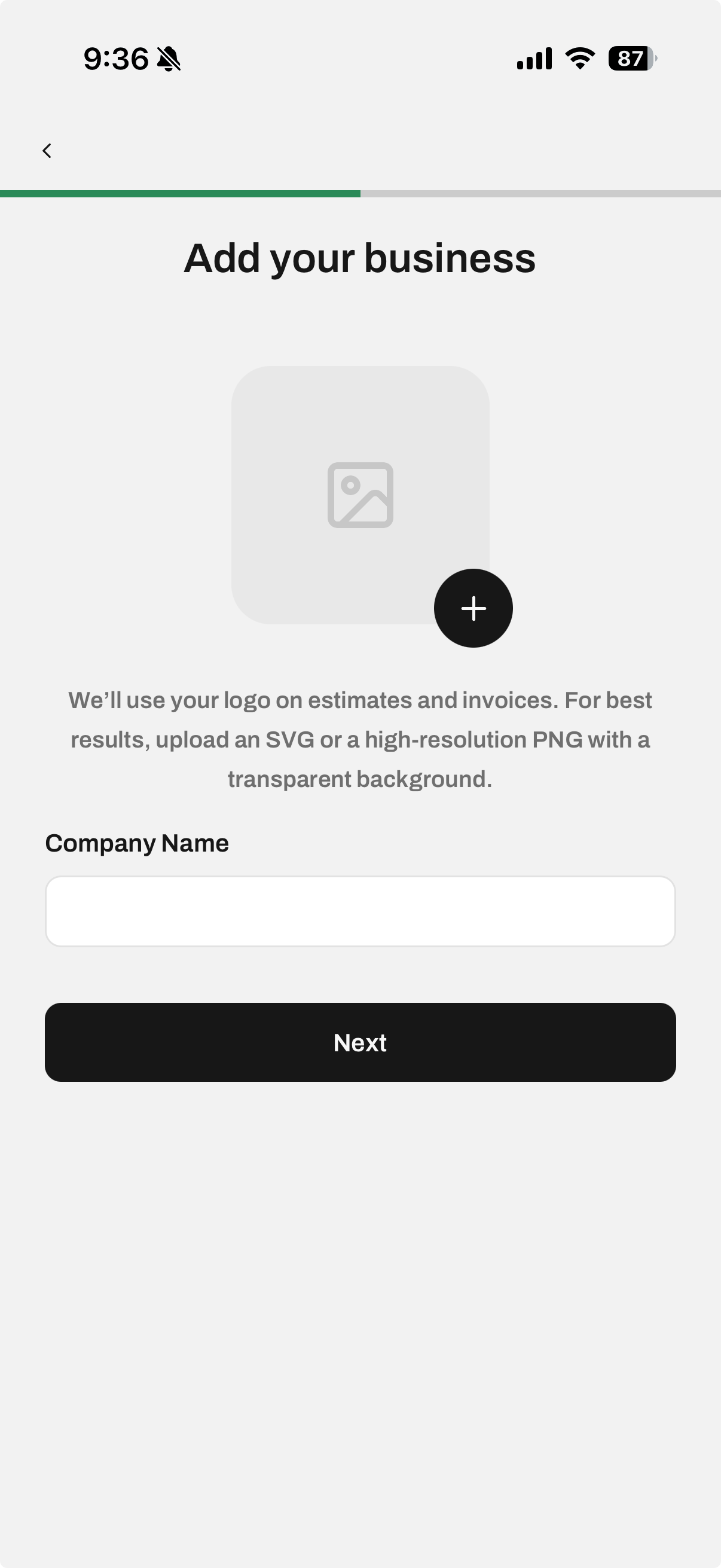
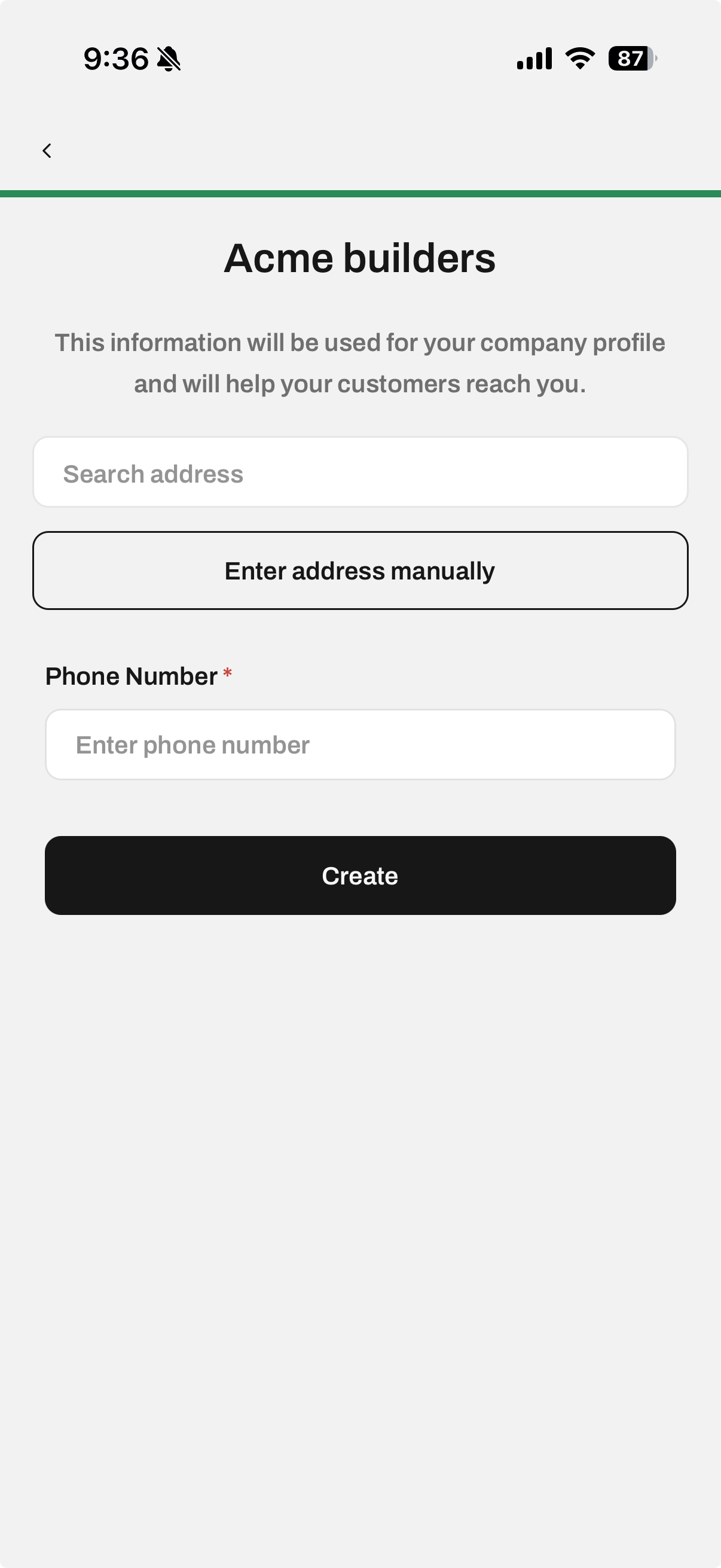
After signing in, the onboarding wizard walks you through your company setup. Add:
- ✓Your company name
- ✓A logo (optional — you can add one later)
- ✓Business address and contact details
This is a one-time setup. Your company details — name, logo, address, and phone number — appear on every estimate and invoice you send, so your customers always know who they're working with and how to reach you.
Create your first job
Create your first job
There are two ways to create a job. Use whichever feels more natural — both get you to the same place.
Option A — Ask your AI assistant
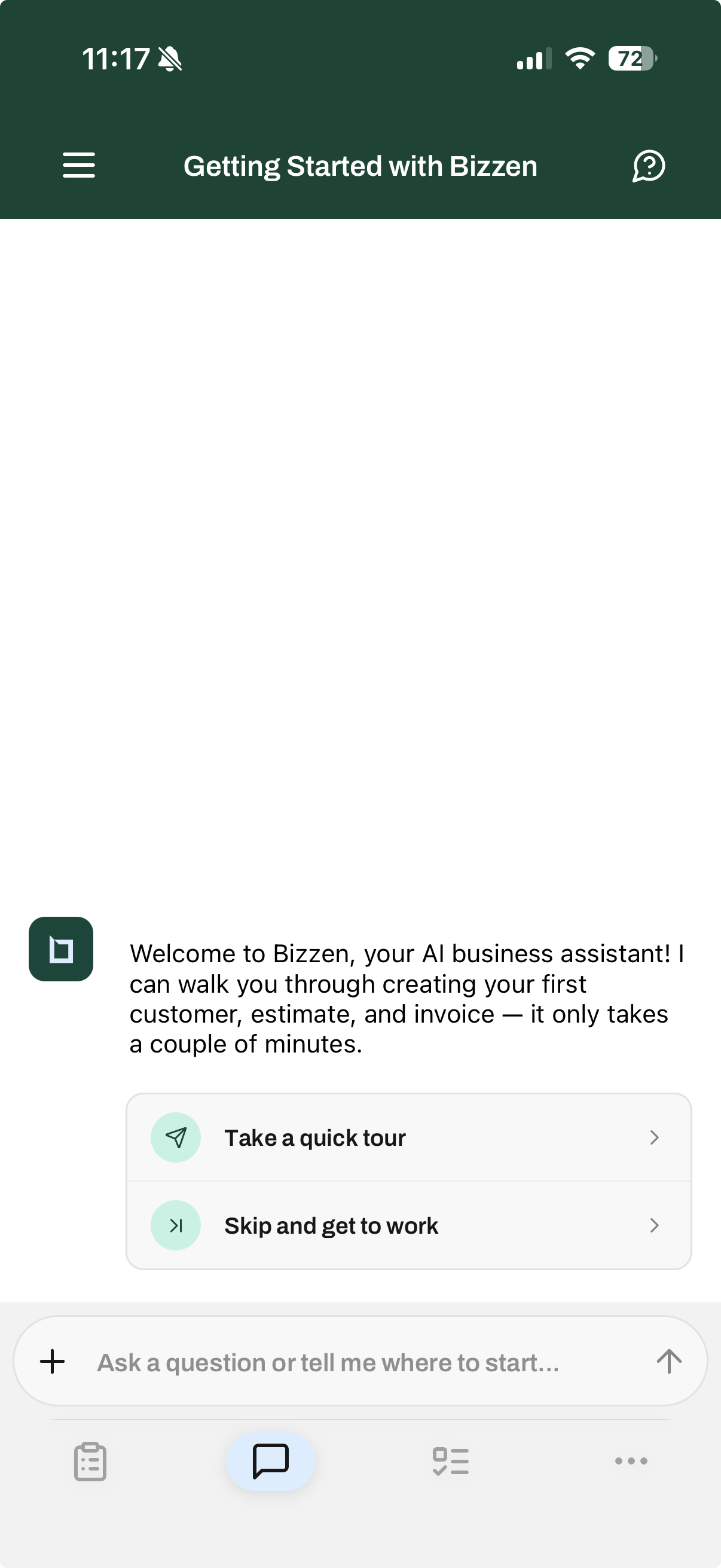
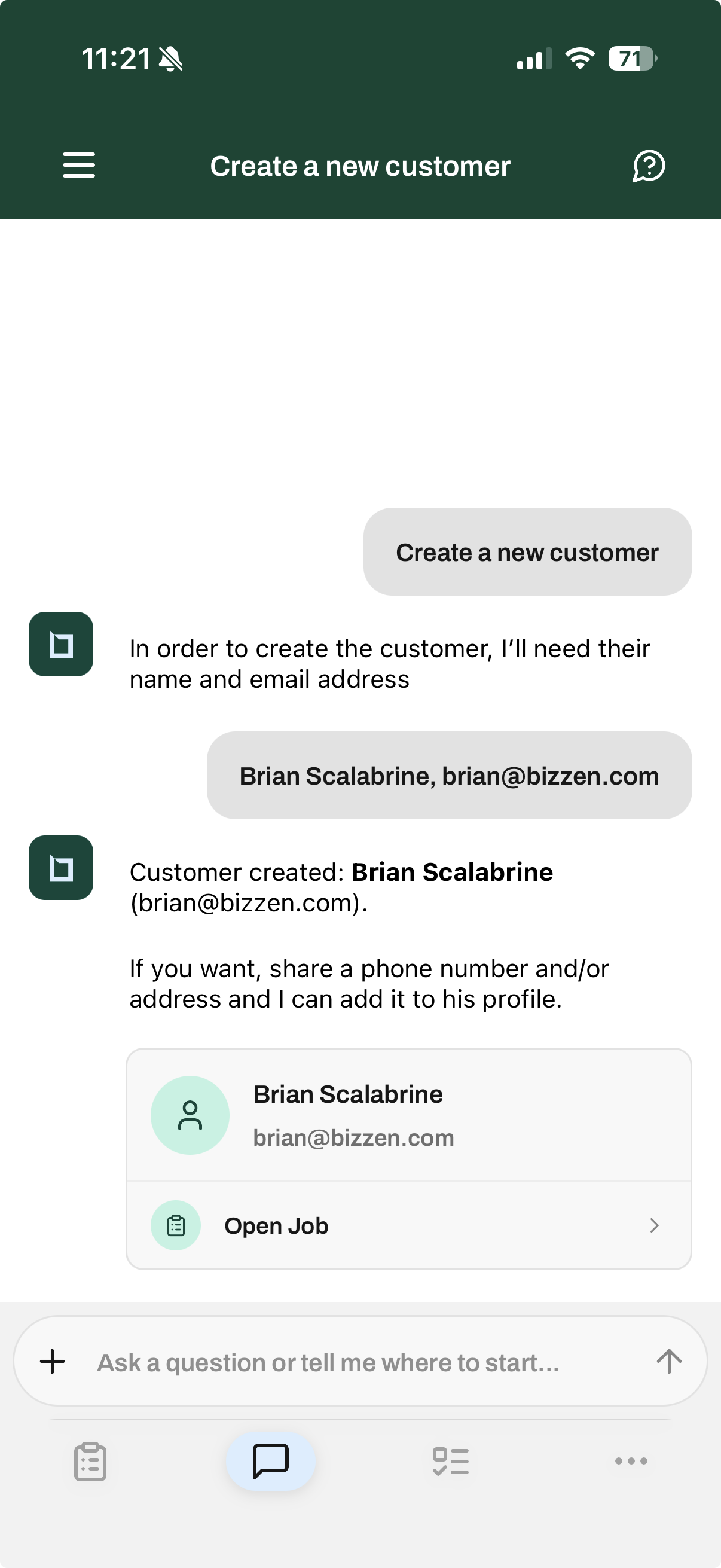
From the Conversation page, say “Create a new customer” and provide a name and email. Your assistant creates the customer and a job in one step, then gives you an Open Job link to jump straight to the job details.
Option B — Use the Jobs tab
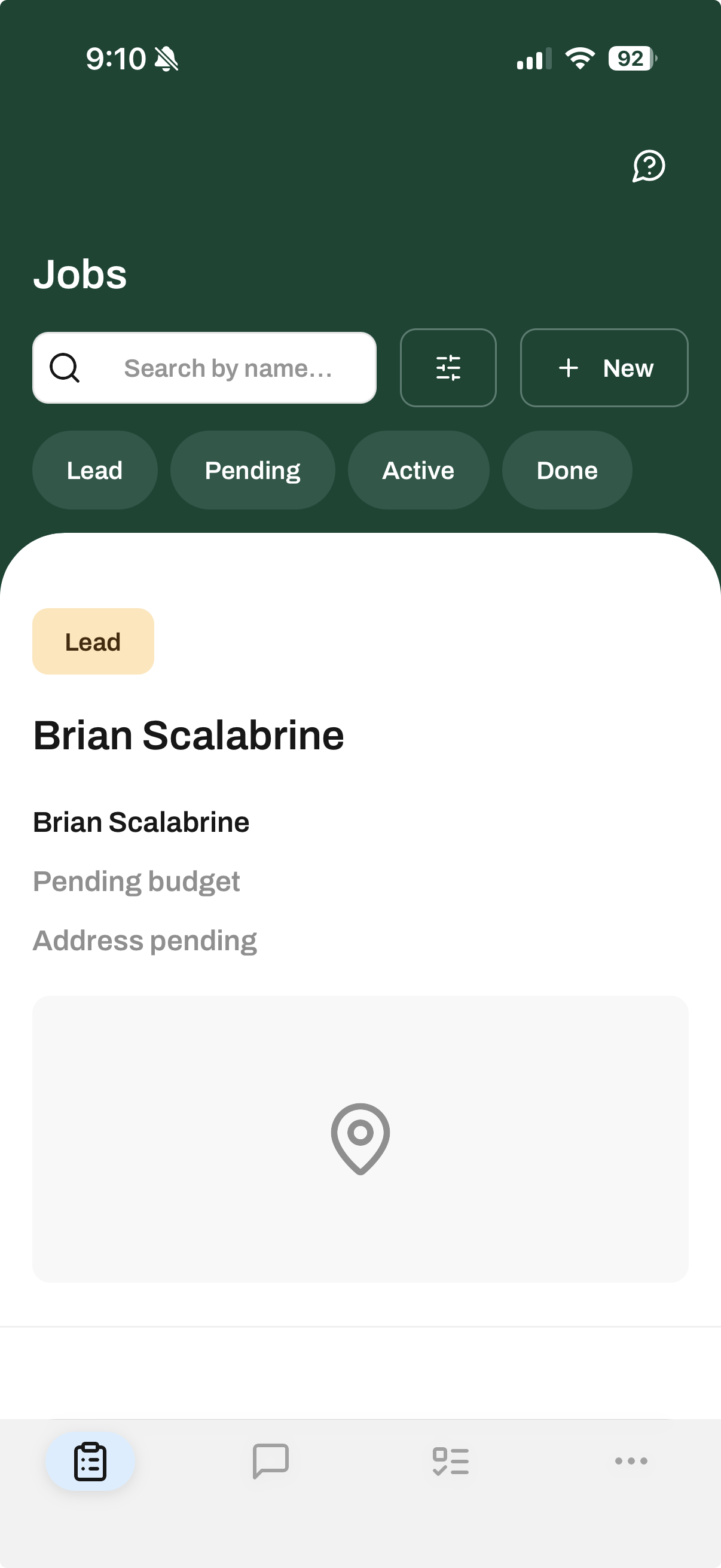
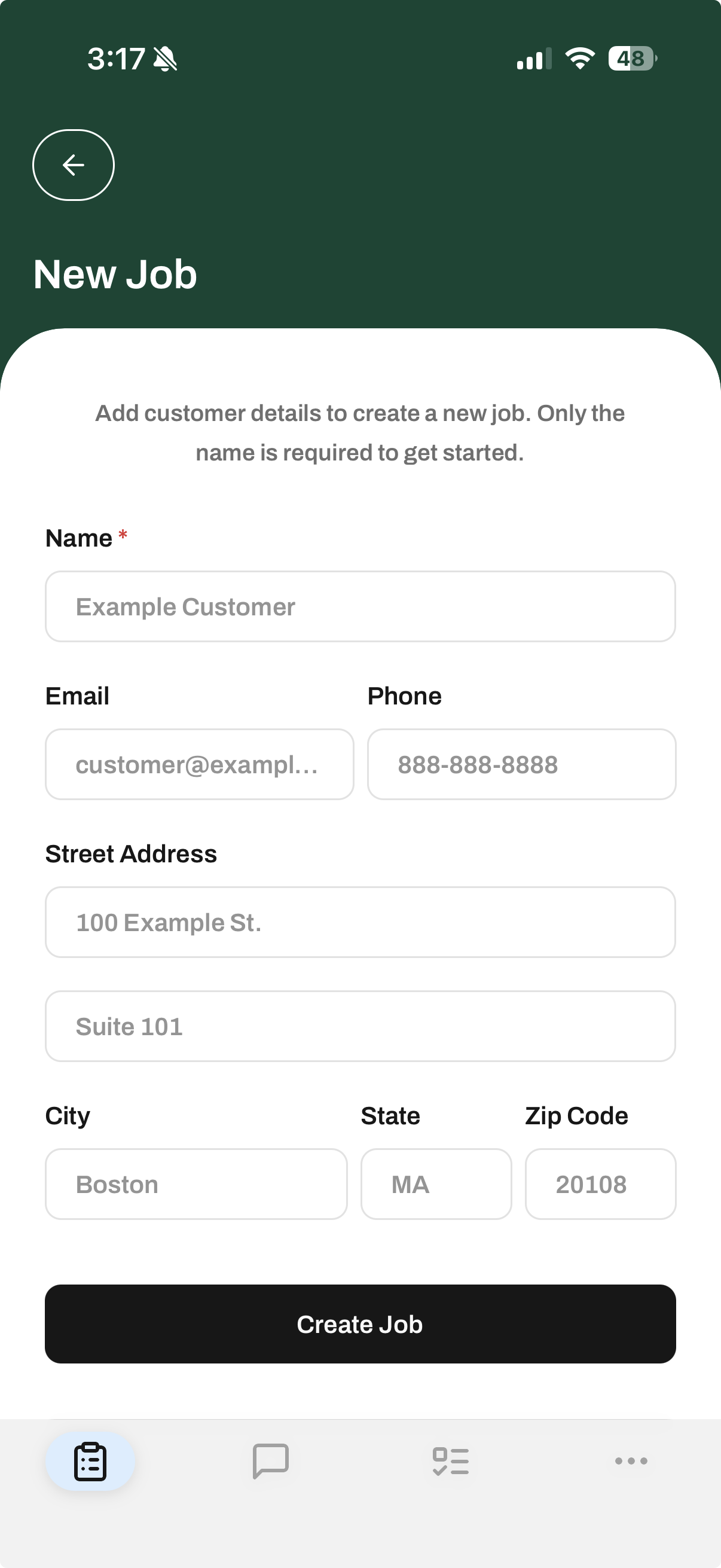
Tap the Jobs tab, then hit + New. Fill out the short form — name, email, phone, and address — and you're in the job details.
Record a site visit
Record a site visit
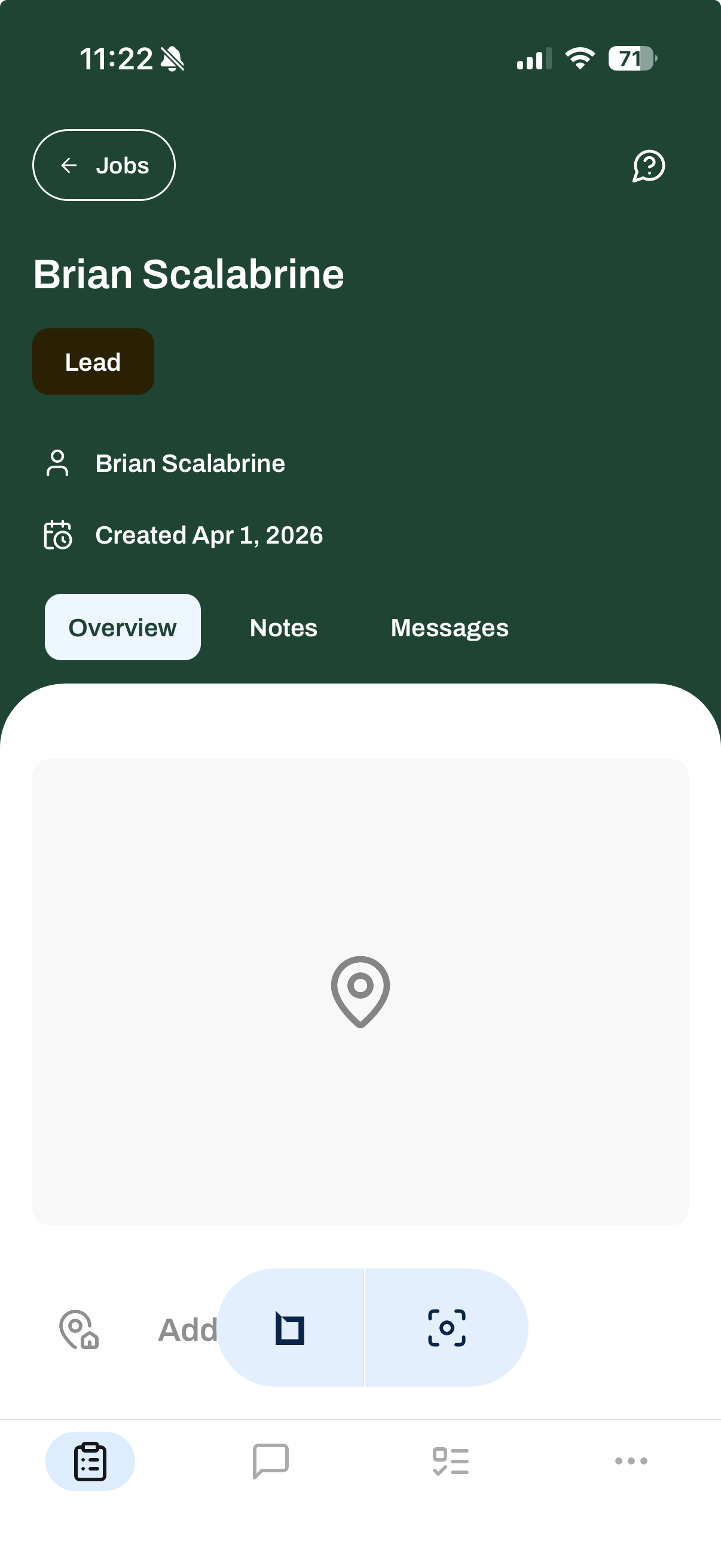
From the job details screen, look for the action buttons at the bottom. Tap the site visit icon — it looks like a photo frame (the middle button in the toolbar). This launches the site visit copilot.
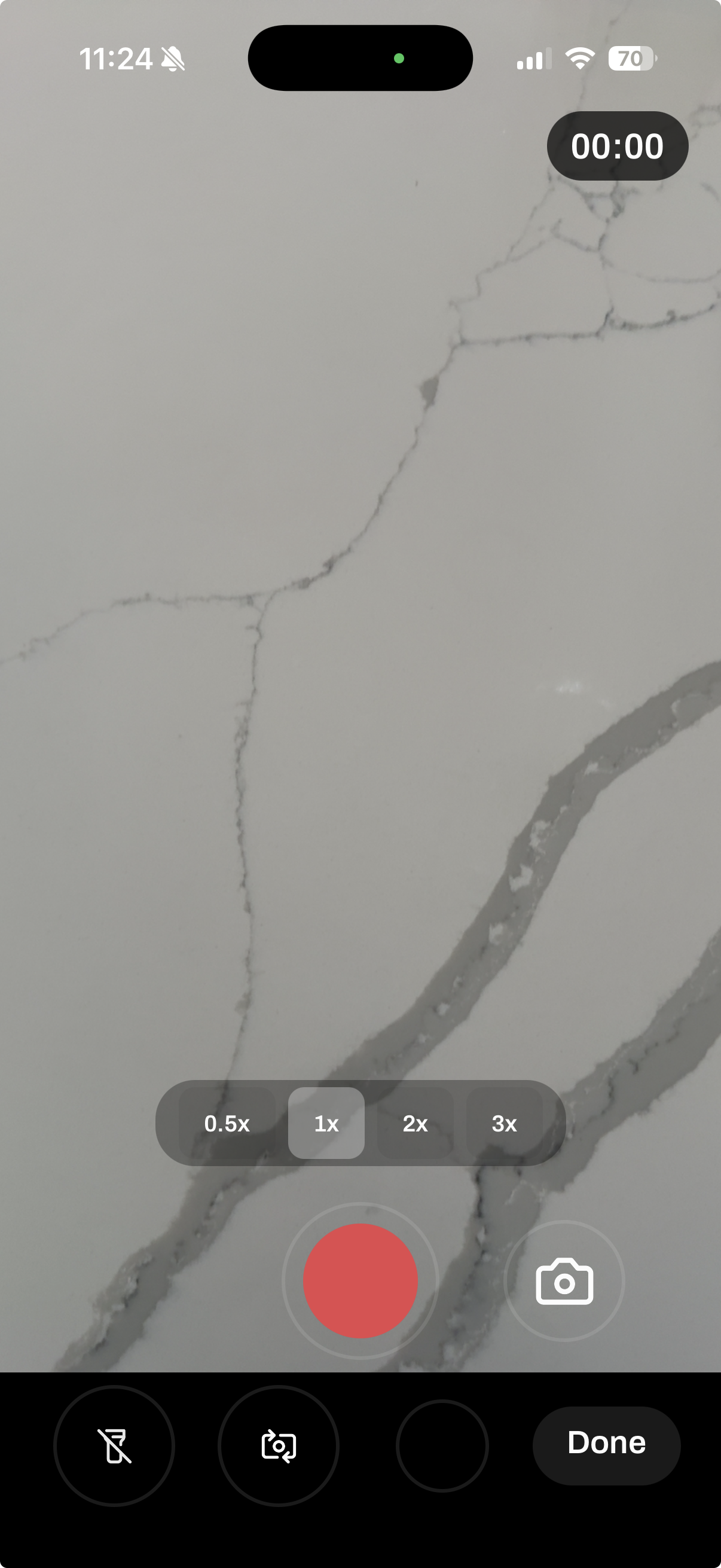
Walk through the job site and narrate what you see — the copilot captures video and starts generating notes as you go. When you're finished, tap Done and your notes will be finalized within minutes.
Review your notes
Review your notes
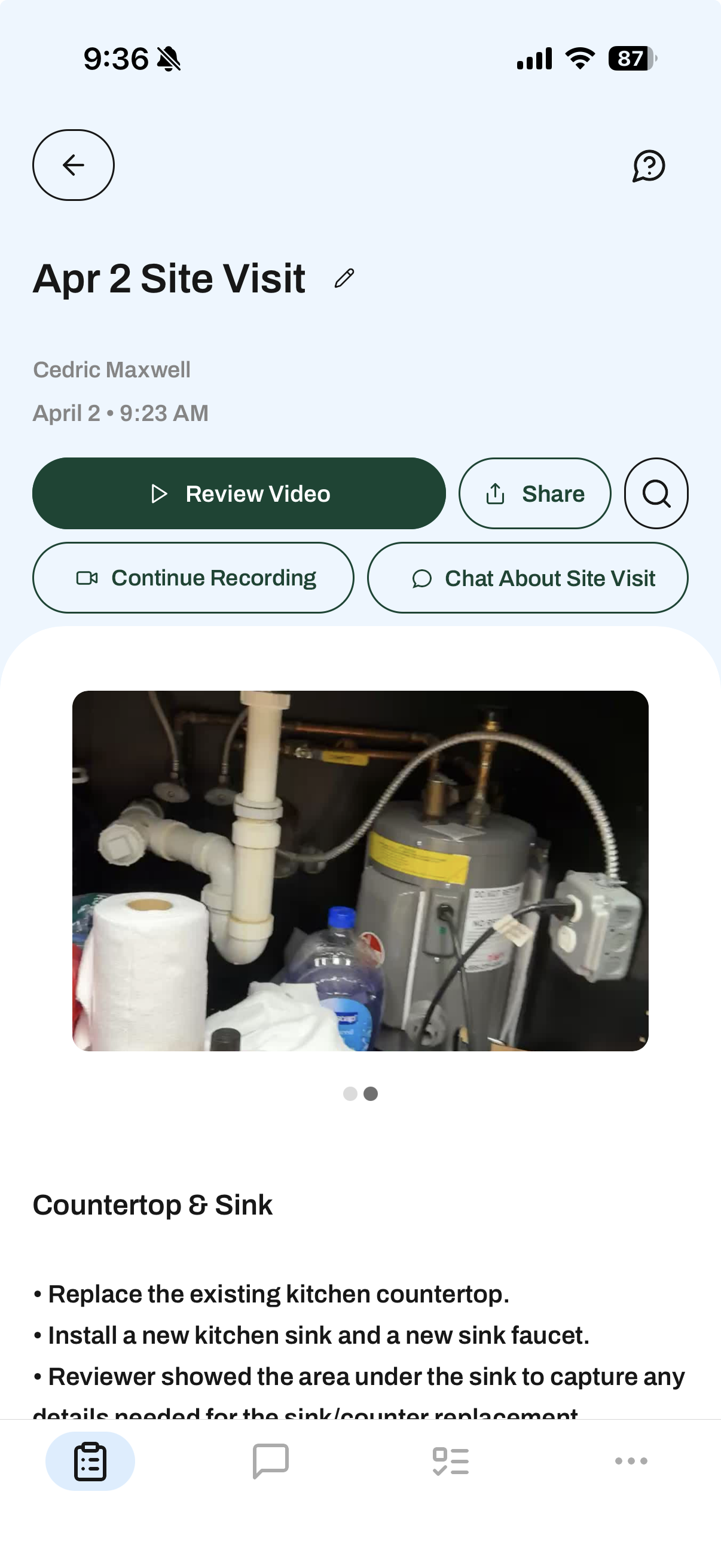
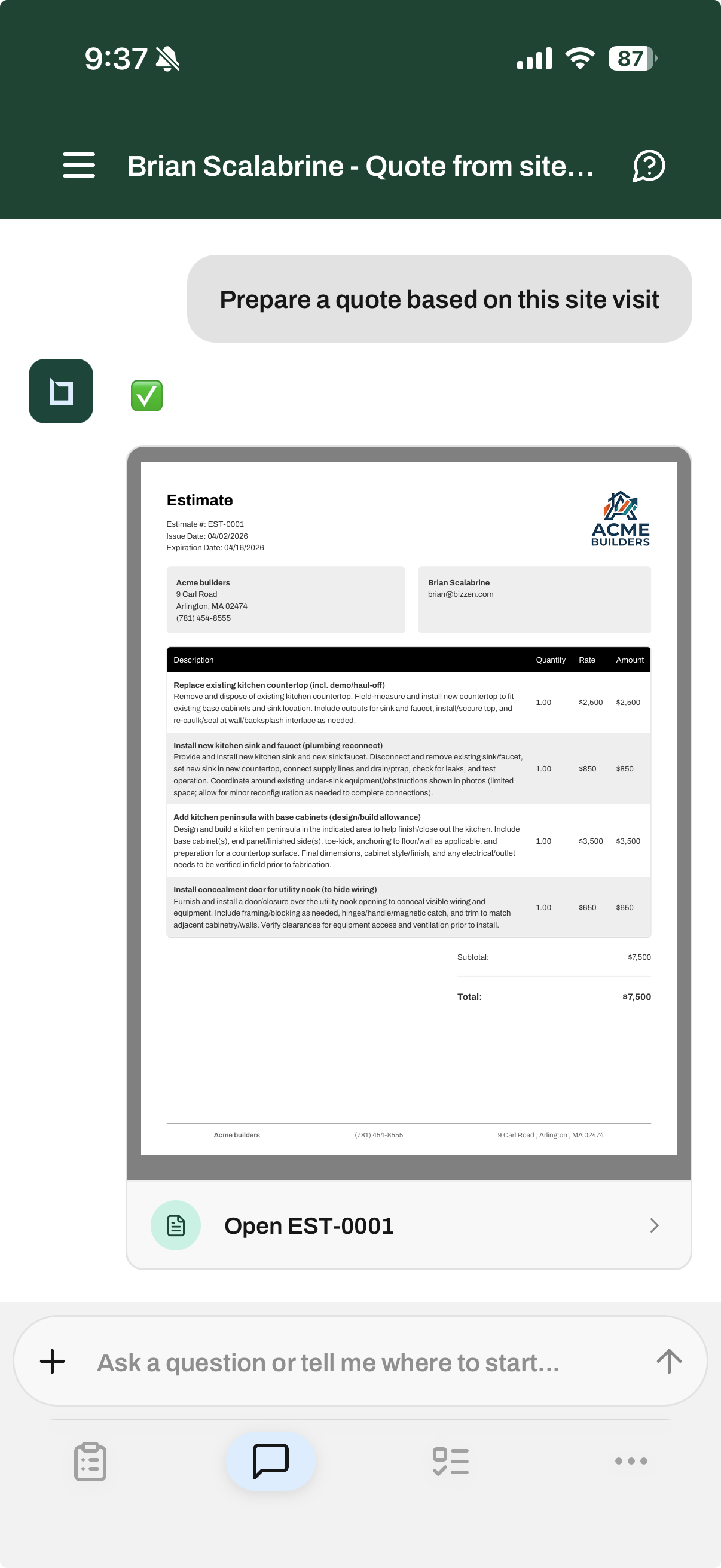
Once your site visit is complete, Bizzen produces a full set of notes — including scope, photos, and observations — that you can review, edit, and share with your customer. No typing needed.
You can also start a conversation with the AI within the context of your notes. Ask it to generate an estimate, summarize the scope, or anything else you need — and it'll have the full picture from your walkthrough.
Help us make Bizzen better
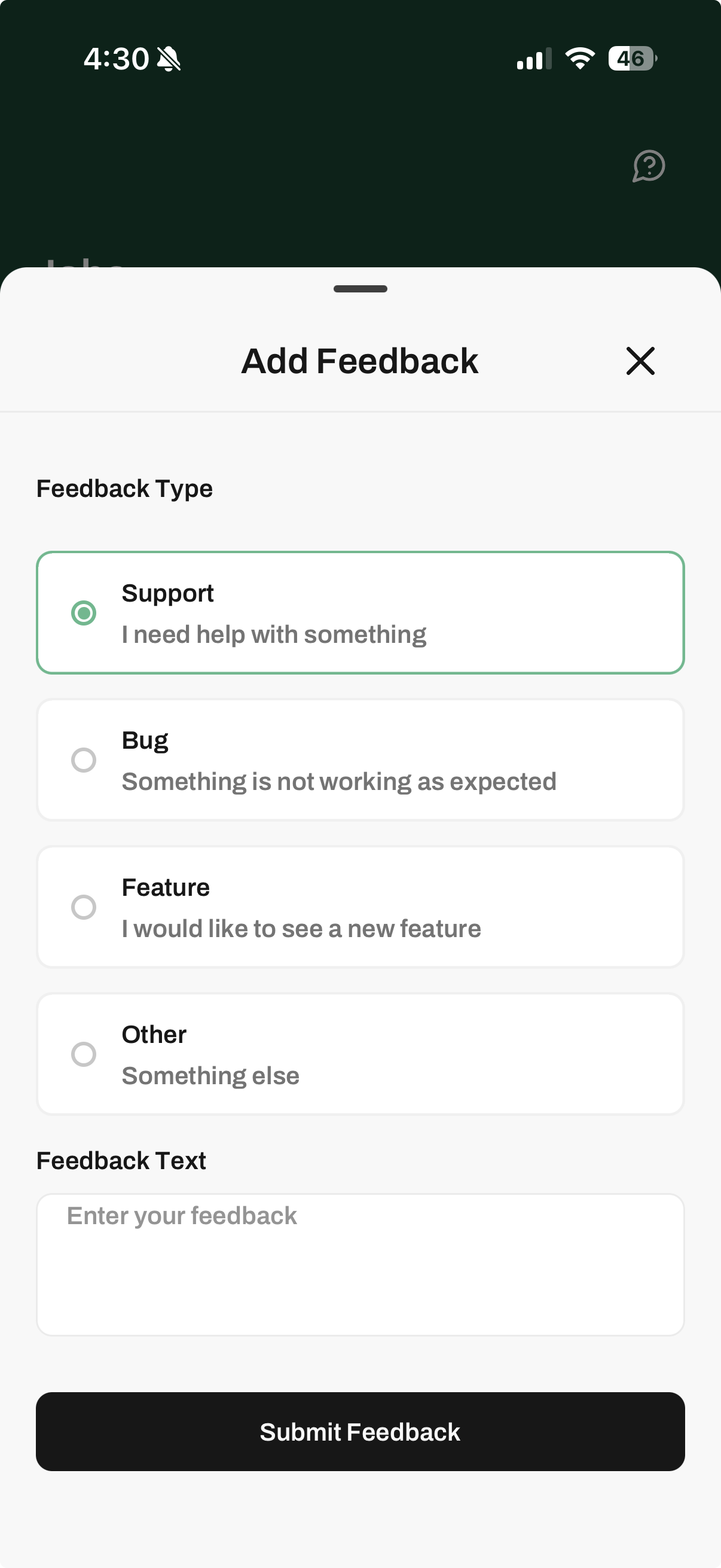
We listen closely to every piece of customer feedback. If something doesn't look right, feels confusing, or could work better — we want to hear about it. Tap the ? icon in the top-right corner of any screen to open the feedback form.
Bug reports, feature ideas, or anything in between — every submission goes directly to the team building the product.
This is just the beginning
What you've seen here are just some of the features the Bizzen app offers. From an AI secretary that answers your calls to financial tools, templates, and more — schedule time with our team to see the full feature set and get everything configured for your business.
Schedule your onboarding call
Book a time with Jordan to walk through your setup, review your workflow, and get your AI secretary configured.